Navigating the urban jungle can be a stressful experience. Whether you’re racing to catch a subway in New York, navigating the London Underground, or hopping on a bus in Tokyo, the last thing you want is to be fumbling with paper tickets or getting lost in a maze of exits.
Enter Google Pixel Transit Mode. More than just a simple feature, it is an integrated ecosystem designed to make public transportation seamless, hands-free, and incredibly smart. In this guide, we’ll explore how to master transit mode on your Pixel device and why it is the ultimate tool for the modern commuter.
What is Google Pixel Transit Mode?
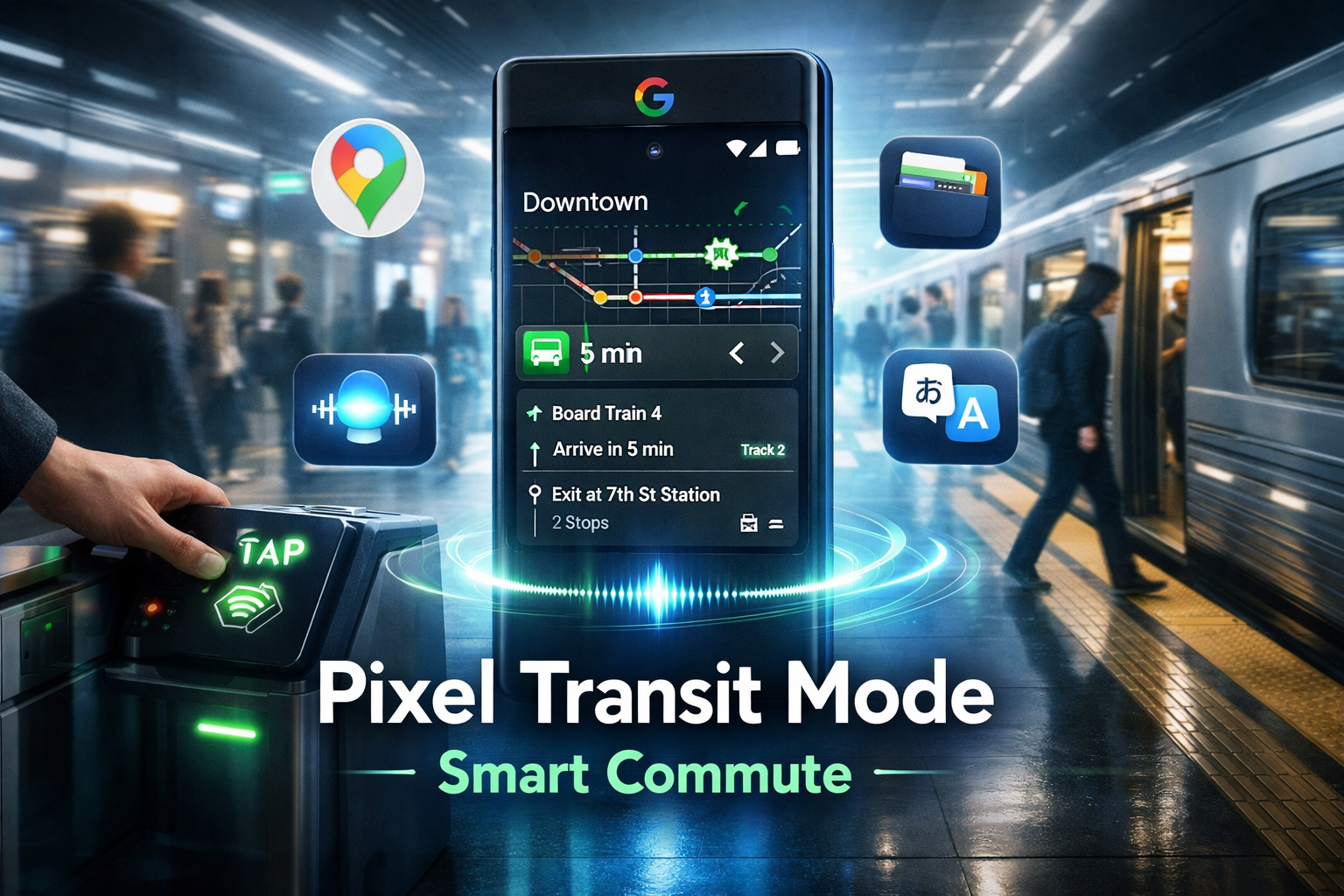
Technically, “Transit Mode” isn’t a single switch in your settings; rather, it is a sophisticated combination of Google Maps, Google Wallet, Gemini AI, and Pixel’s At-a-Glance feature. When these elements work together, your Pixel phone transforms into a dedicated travel assistant that anticipates your needs before you even ask.
The Key Pillars of the Pixel Transit Experience:
- Real-Time Navigation: Door-to-door directions with live traffic and delay updates.
- Contactless Payments: Using Google Wallet to tap-and-go at turnstiles.
- At-a-Glance Integration: Seeing your bus arrival time directly on your lock screen.
- Live Translate: Using the camera or Buds to translate foreign transit signs and announcements in real-time.
How to Set Up Your Pixel for Seamless Transit
To get the most out of your Google Pixel during your commute, you need to ensure your settings are optimized. Follow these steps to turn your phone into a transit powerhouse:
- Add Your Transit Pass to Google Wallet:
Open the Wallet app, tap “Add to Wallet,” and select “Transit Pass.” Many cities now allow you to link your physical card or buy digital tickets directly. - Enable “At a Glance” Transit Alerts:
Long-press on your home screen, tap “Customise,” then “At a Glance.” Ensure that “Commute” and “Travel” toggles are turned on. - Set Your Home and Work Addresses:
In Google Maps, tap your profile icon > Settings > Edit home or work. This allows Gemini to give you proactive “time to leave” alerts. - Download Offline Maps:
If you’re heading into a subway system with no cell service, download the map of your city in advance so your GPS still functions underground.
People Also Ask (PAA)
We’ve pulled the most common questions from Google to help you troubleshoot and optimize your experience.
1. How do I use Google Pixel for public transport?
To use your Pixel for public transport, rely on the Google Maps app. Simply enter your destination and select the “Transit” icon (the train symbol). Your Pixel will give you step-by-step instructions, including which platform to stand on and which exit to take. If your city supports it, you can also use Google Wallet to pay by tapping your phone against the terminal.
2. Does Google Pixel have a transit card feature?
Yes. Through Google Wallet, you can store credit cards for “Open Loop” systems (like OMNY in NYC or TfL in London) or specific transit cards (like Suica in Japan or Clipper in San Francisco). You don’t even need to wake your screen for many of these; just tap the back of your Pixel against the reader.
3. How do I get transit alerts on my Google Pixel lock screen?
This is handled by the At-a-Glance feature. When you have an active transit trip in Google Maps, your lock screen and Always-on Display will automatically show your next stop, any delays, and your estimated arrival time.
4. Can I use Gemini AI to help with my commute?
Absolutely. In the latest Pixel updates, you can ask Gemini, “Hey Google, when is the next bus to Broadway?” or “Gemini, find the fastest way home using only the subway.” Gemini integrates with Maps to give you conversational, real-time updates.
Why the Pixel is the Best Phone for Commuters
While other smartphones have maps and wallets, the Google Pixel offers unique hardware and software integration that others lack.
1. The Power of “At a Glance”
Most phones require you to unlock the device and open an app to see your next turn. The Pixel puts this information right on your lock screen. Whether it’s a gate change for a train or a notification that your bus is running 5 minutes late, the info is there without you touching a button.
2. Live Translate for International Travel
If you are traveling abroad, the Pixel’s Live Translate is a lifesaver. You can point your camera at a complicated German train schedule or a Japanese subway map, and the Pixel will overlay the translation instantly. This works offline, too, which is vital for underground stations.
3. Wear OS Integration (Pixel Watch)
If you pair your Pixel with a Pixel Watch, the transit mode experience is elevated. You’ll feel a haptic vibration on your wrist when your stop is approaching, ensuring you never miss a station even if you’re reading a book or dozing off.
4. Battery Efficiency with Extreme Battery Saver
Commuting can drain your battery, especially with GPS active. Pixel’s Intelligent Battery learns your transit patterns and prioritizes power for the apps you need most, like Maps and Wallet, ensuring you aren’t left stranded with a dead phone at the ticket barrier.
Pro Tips for the Advanced Pixel Commuter
- Check the “Crowdedness” Predictor: Google Maps on Pixel uses crowdsourced data to tell you how busy your train or bus is likely to be. Check this before you leave to decide if you want to wait for the next, less crowded ride.
- Use “Live View” for Walking Directions: When you exit a complex subway station and aren’t sure which way to walk, use Live View. It uses Augmented Reality (AR) to point arrows on the actual street to show you exactly where to go.
- Set Transit Reminders: You can tell Gemini, “Remind me to get off at 42nd Street,” and your phone will use geofencing to alert you when you are within a block of your stop.
Final Thoughts: A Smarter Way to Move
The Google Pixel Transit Mode isn’t just about getting from point A to point B; it’s about removing the friction of travel. By centralizing your tickets, your navigation, and your real-time alerts into one intelligent interface, the Pixel allows you to look up from your screen and actually enjoy the journey.